2.2.1 Upload Source Preference Maintenance
This topic describes the systematic instruction about the External Service Maintenance
Prerequisite:
Specify User Id and Password, and login to Home screen.
Context:
The maintenance required in Oracle Banking Treasury (OBTR) to integrate with Oracle FLEXCUBE Universal Banking (FCUBS) is described in this section.
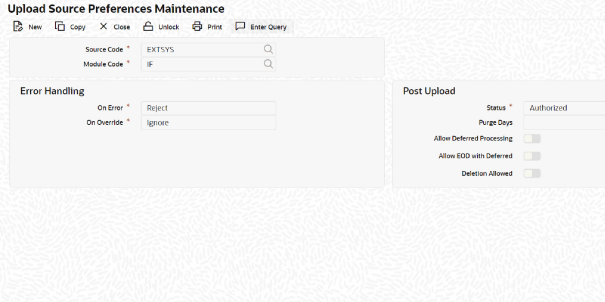
1.On Home screen, specify CODUPLDM in the text box, and click next arrow.
Step Result: Upload Source Preferences Maintenance screen is displayed.
Figure 2.2: Upload Source Preference Maintenance Screen
2.3 External System Function Maintenance
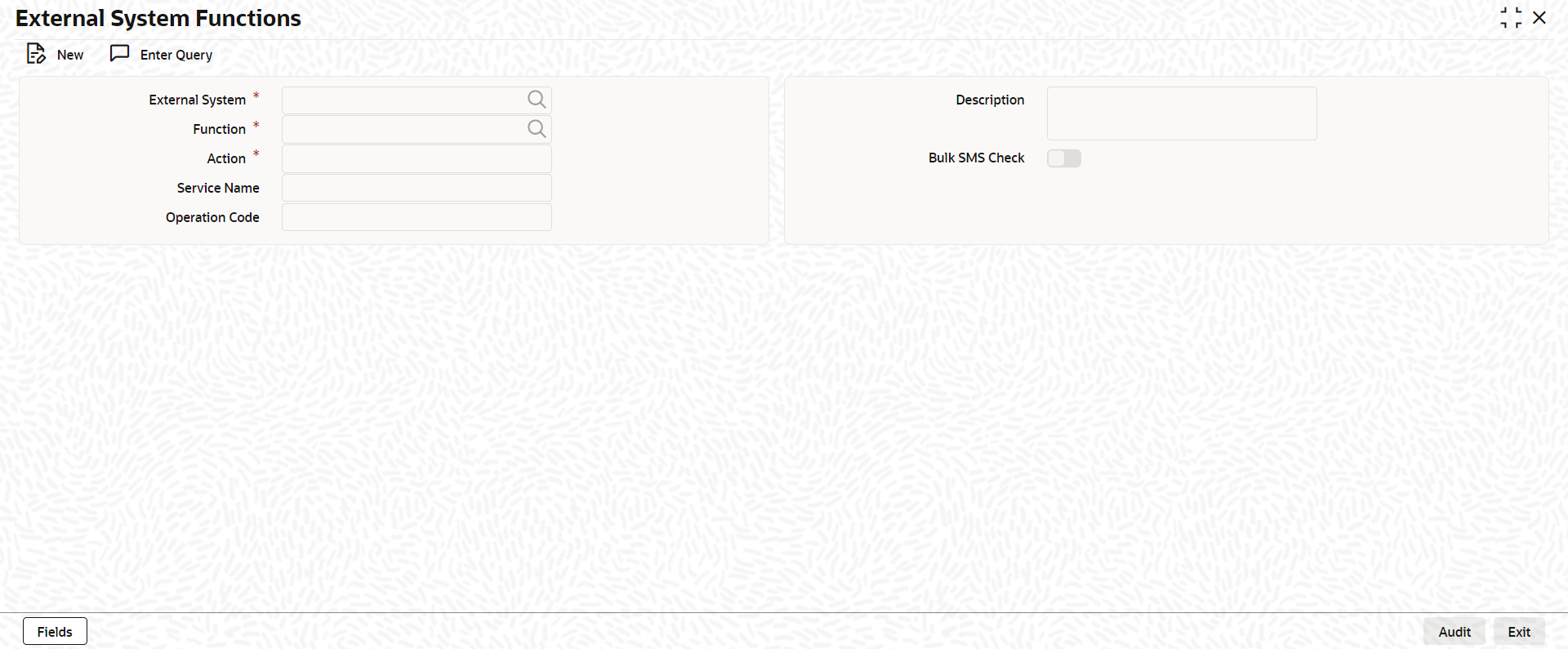
1.Maintain the gateway preferences for the Source System which is maintained in the Source system field of External System Functions Maintenance screen (GWDETFUN) in FCUBS, for the service names “OBTRFXService” and “SummaryQueryContract” with their respective operation codes.On Home screen, specify GWDETFUN in the text box, and click next arrow.
Step Result: External System Functions screen is displayed.
Figure 2.3: External System Functions Screen
2.Maintain the gateway preferences for the Source System which is maintained in the Source system field of External System Functions Maintenance screen (GWDETFUN) in FCUBS, for the service names “OBTRDVService” and “SummaryQueryDVContract” with their respective operation codes.On Home screen, specify GWDETFUN in the text box, and click next arrow.
Step Result: External System Functions screen is displayed.
Figure 2.4: External System Functions Screen
3.Maintain the gateway preferences for the Source System which is maintained in the Source system field of External System Functions Maintenance screen (GWDETFUN) in FCUBS, for the service names “OBTRETDService” and “SummaryQueryETDPortfolio” with their respective operation codes.On Home screen, specify GWDETFUN in the text box, and click next arrow.
Step Result: External System Functions screen is displayed.
Figure 2.5: External System Functions Screen
4.Maintain the gateway preferences for the Source System which is maintained in the Source system field of External System Functions Maintenance screen (GWDETFUN) in FCUBS, for the service names “OBTRIDService” and “SummaryQueryIDContract” with their respective operation codes.On Home screen, specify GWDETFUN in the text box, and click next arrow.
Step Result: External System Functions screen is displayed.
Figure 2.6: External System Functions Screen
5.Maintain the gateway preferences for the Source System which is maintained in the Source system field of External System Functions Maintenance screen (GWDETFUN) in FCUBS, for the service names “OBTRMCService” and “SummaryQueryMCIContract” with their respective operation codes.On Home screen, specify GWDETFUN in the text box, and click next arrow.
Step Result: External System Functions screen is displayed.
Figure 2.7: External System Functions Screen
6.Maintain the gateway preferences for the Source System which is maintained in the Source system field of External System Functions Maintenance screen (GWDETFUN) in FCUBS, for the service names “OBTRMMService” and “SummaryQueryMMContract” with their respective operation codes.On Home screen, specify GWDETFUN in the text box, and click next arrow.
Step Result: External System Functions screen is displayed.
Figure 2.8: External System Functions Screen
7.Maintain the gateway preferences for the Source System which is maintained in the Source system field of External System Functions Maintenance screen (GWDETFUN) in FCUBS, for the service names “OBTROTService” and “SummaryQueryOTContract” with their respective operation codes.On Home screen, specify GWDETFUN in the text box, and click next arrow.
Step Result: External System Functions screen is displayed.
Figure 2.9: External System Functions Screen
8.Maintain the gateway preferences for the Source System which is maintained in the Source system field of External System Functions Maintenance screen (GWDETFUN) in FCUBS, for the service names “OBTRSecuritiesService” and “SummaryQuerySEPortfolio” with their respective operation codes.On Home screen, specify GWDETFUN in the text box, and click next arrow.
Step Result: External System Functions screen is displayed.
Figure 2.10: External System Functions Screen